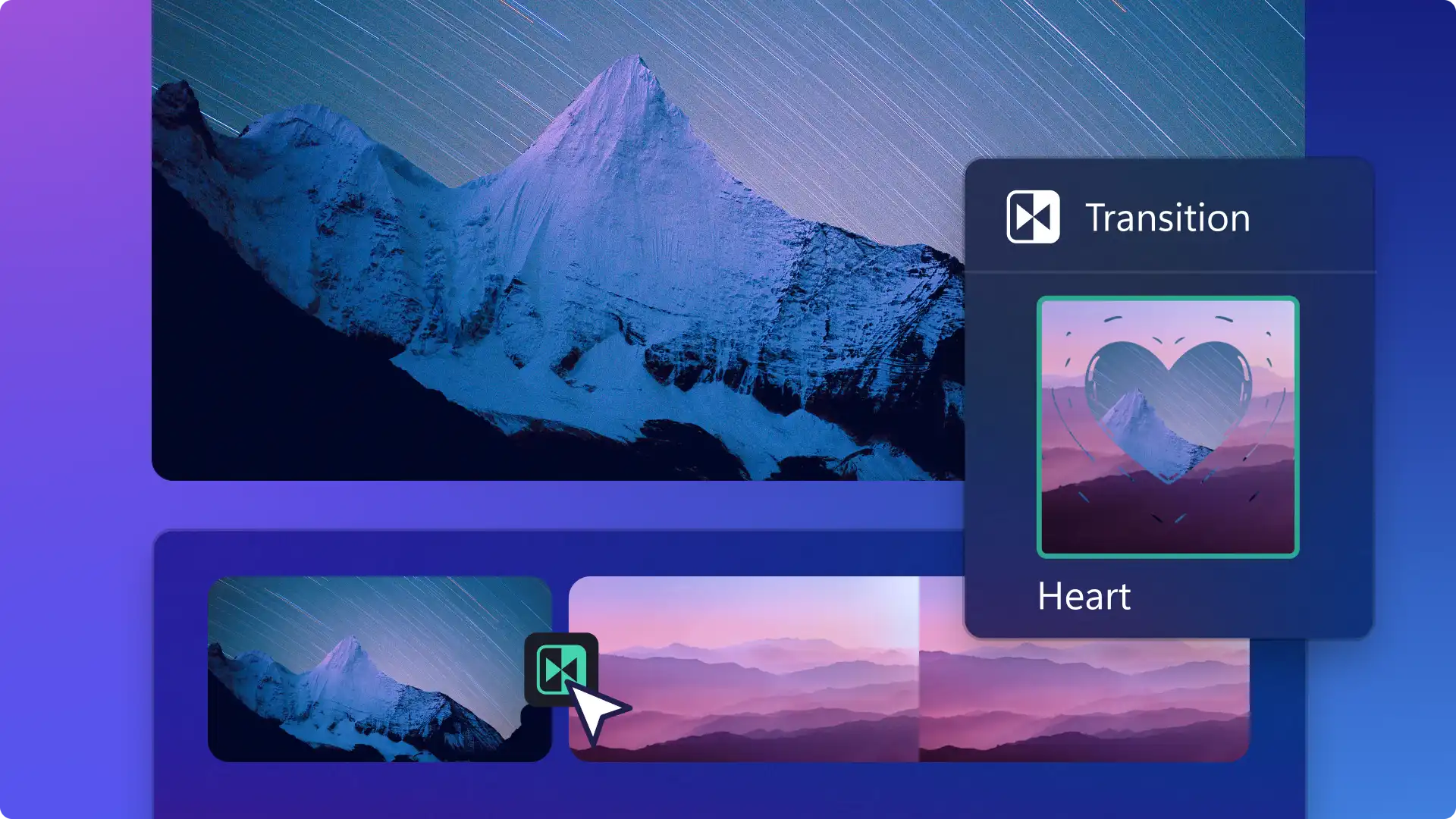
Music can strengthen the impact of a well-edited video, while transitions help connect scenes naturally. Adding sound effects to those transitions can make scene changes feel more immersive, reinforce the mood of a moment, or add humor to a clip. Sound effects like whoosh, glitch, and rewind are especially popular in reaction videos. Reels and YouTube outro videos often use transition sounds to create momentum and shape the viewing experience.
Learn how to add transitions and royalty-free sound effects in Clipchamp video editor, explore creative ways to pair them, and see how transition sounds can also enhance PowerPoint presentations.
How to add transition sound effects to videos
Step 1. Add stock or import media
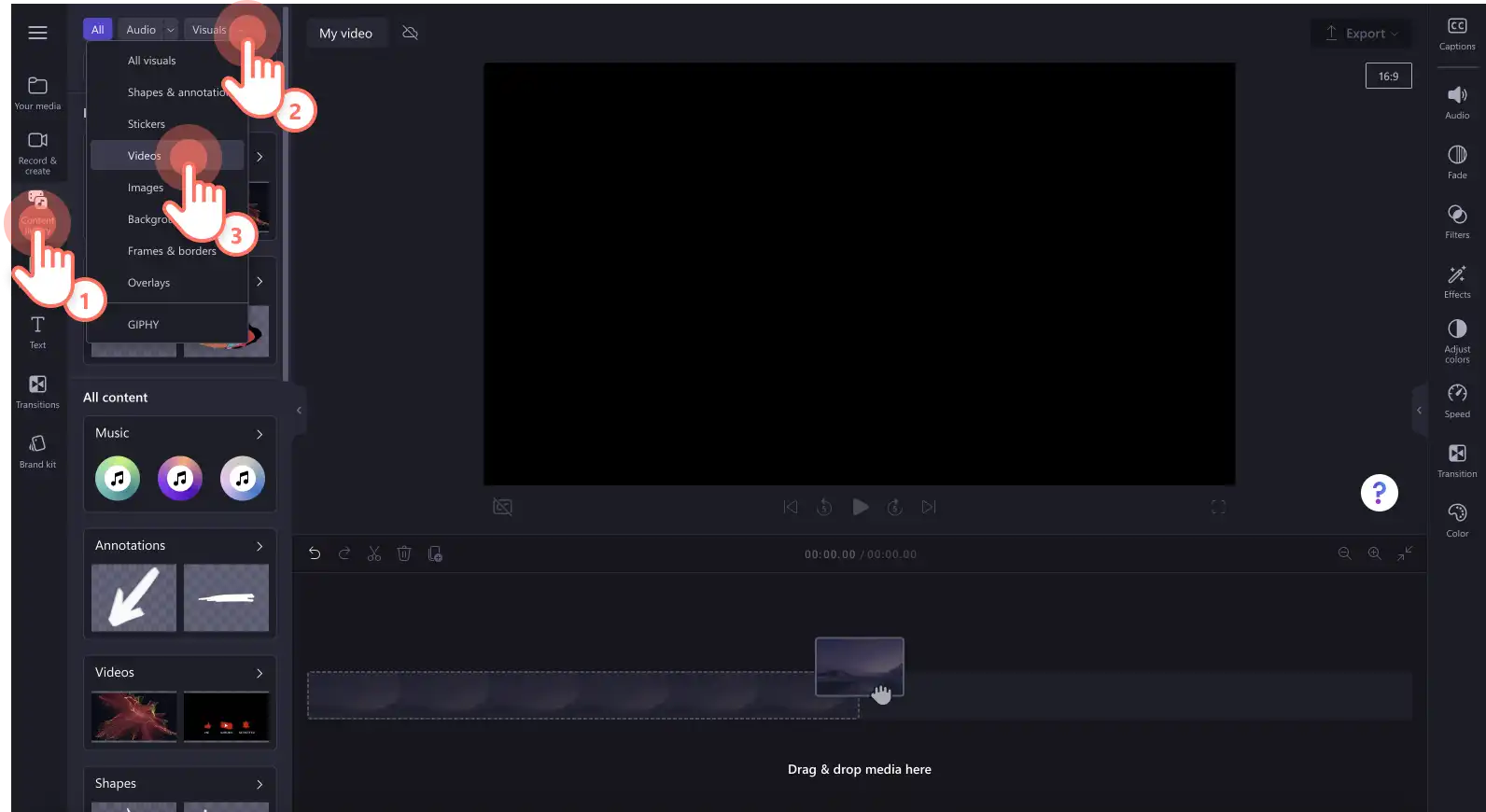
Search the royalty-free video library to find the right stock footage for a video idea. Click on the content library tab on the toolbar and click on the visuals drop down arrow, then videos. Search through the different stock categories using keywords in the search.
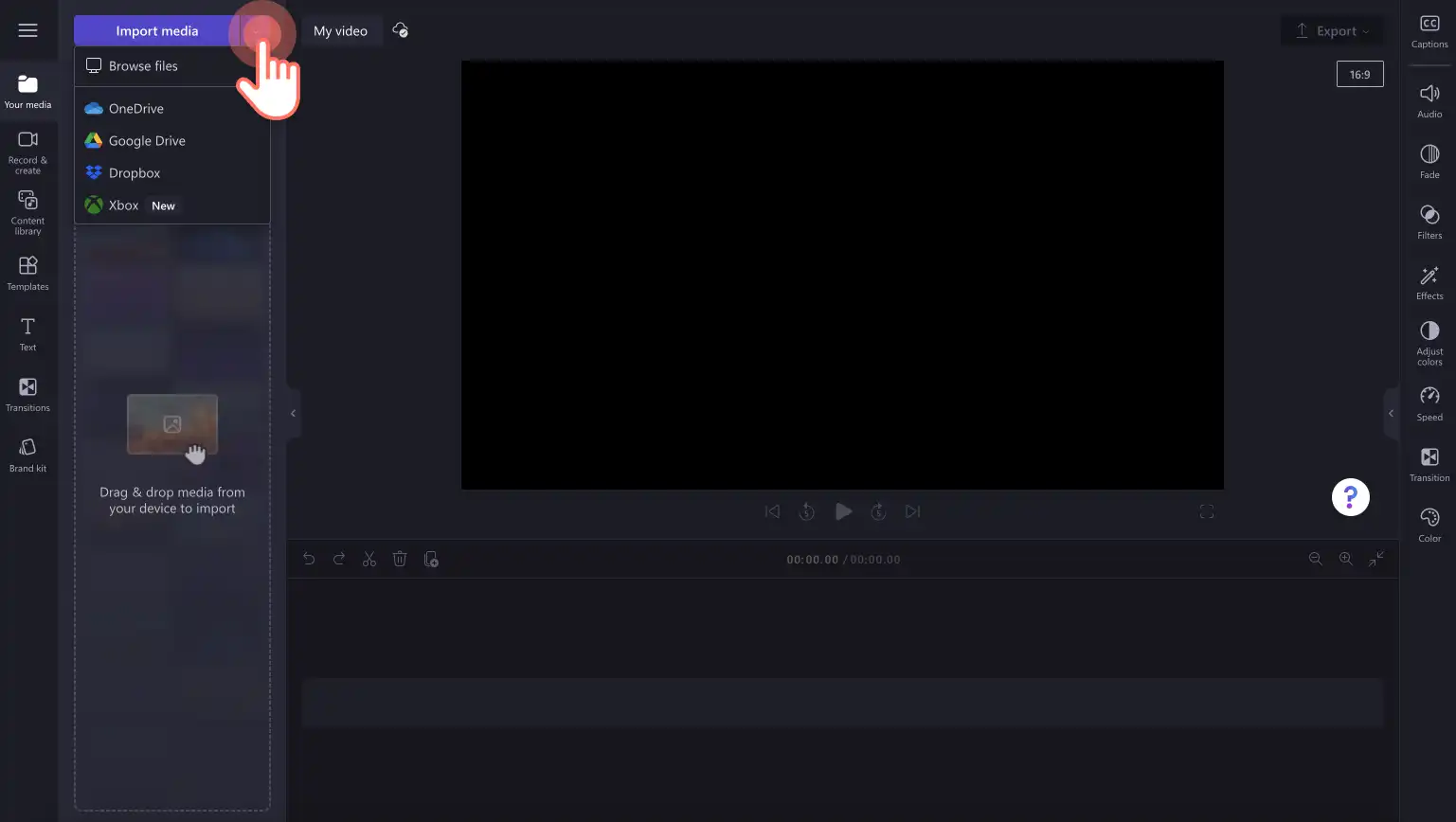
To upload a video or other media, click on the import media button in the your media tab on the toolbar to browse local computer files, or connect OneDrive.
Step 2. Combine media assets on the timeline
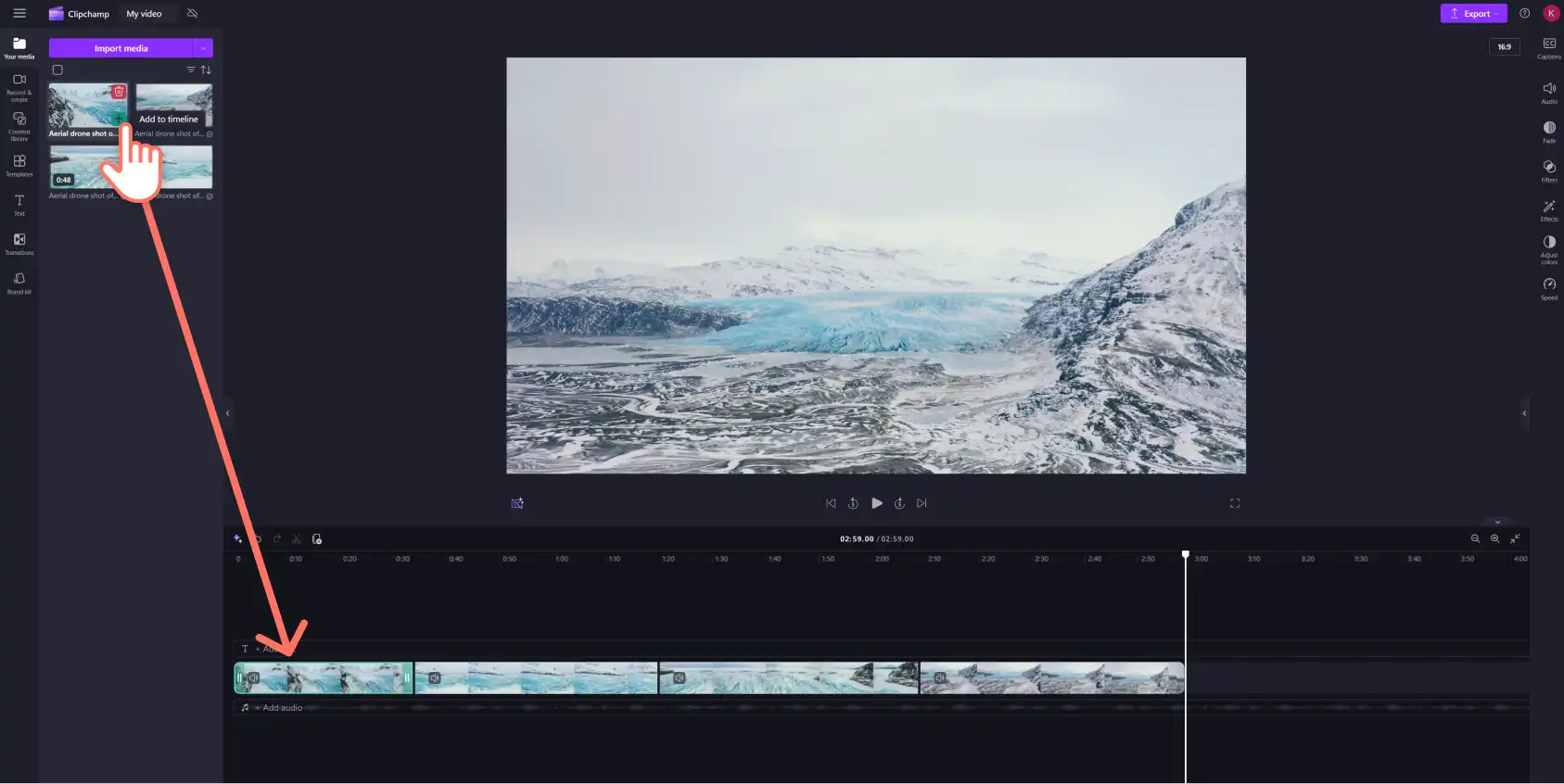
Drag and drop the selected videos and images from the your media tab onto the timeline. Make sure to add media assets side by side on the timeline to use transitions.
Step 3. Add transitions to the video
To add a transition between two clips, click on the transitions tab on the toolbar. Scroll through the scene transition options to find the transition that suits the video. Explore popular categories like fades, zooms, cartoon, glitches, and 3D.
Preview transition animations by hovering the cursor over the transition option. Choose from timeless film transitions like cross-fade, spin, and wipes, or try a more creative transition like bloom or horizontal banding.
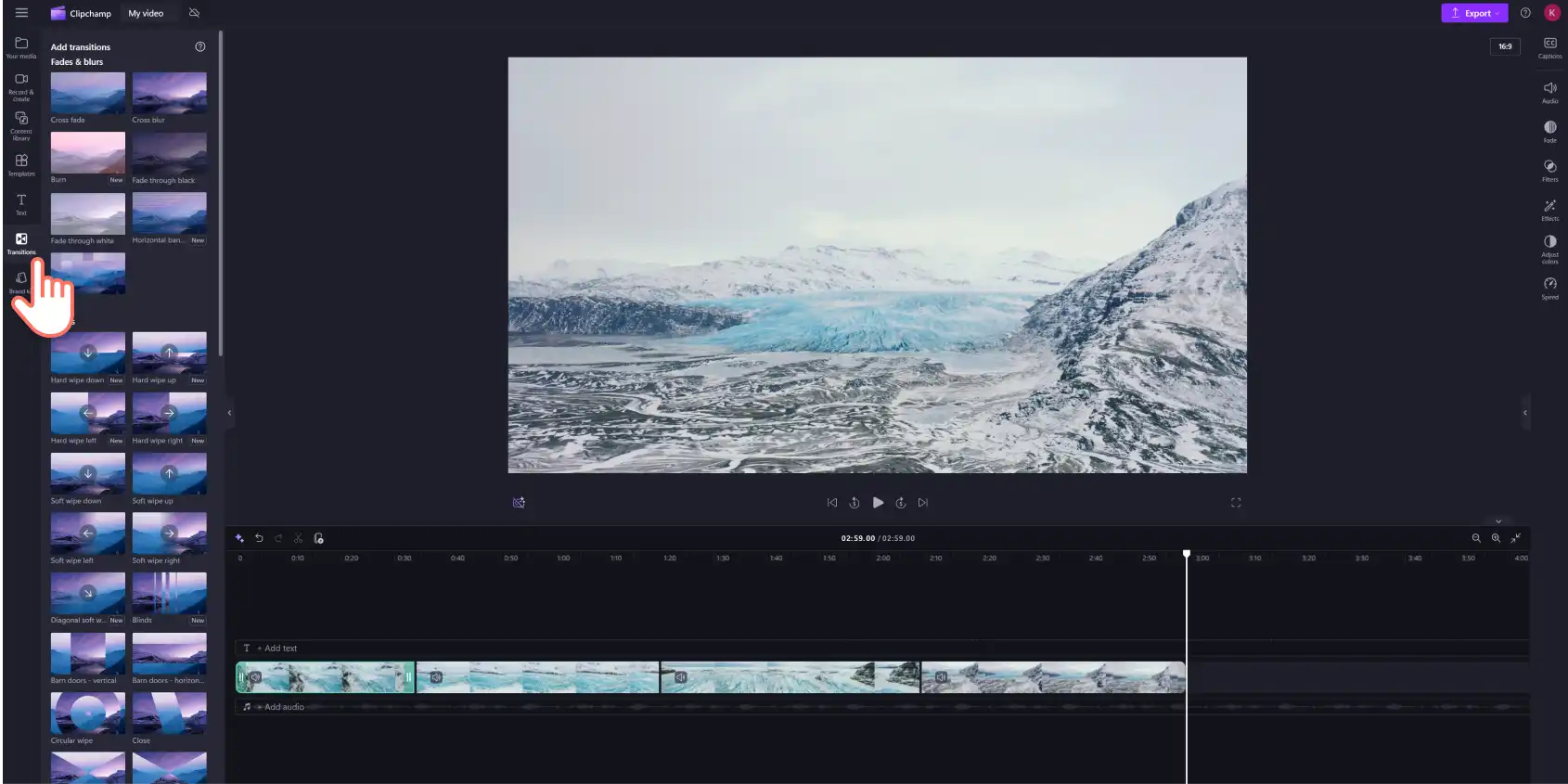
Once a transition is selected, drag and drop it between two clips on the timeline. The transition automatically snaps into place on the green icon that appears.
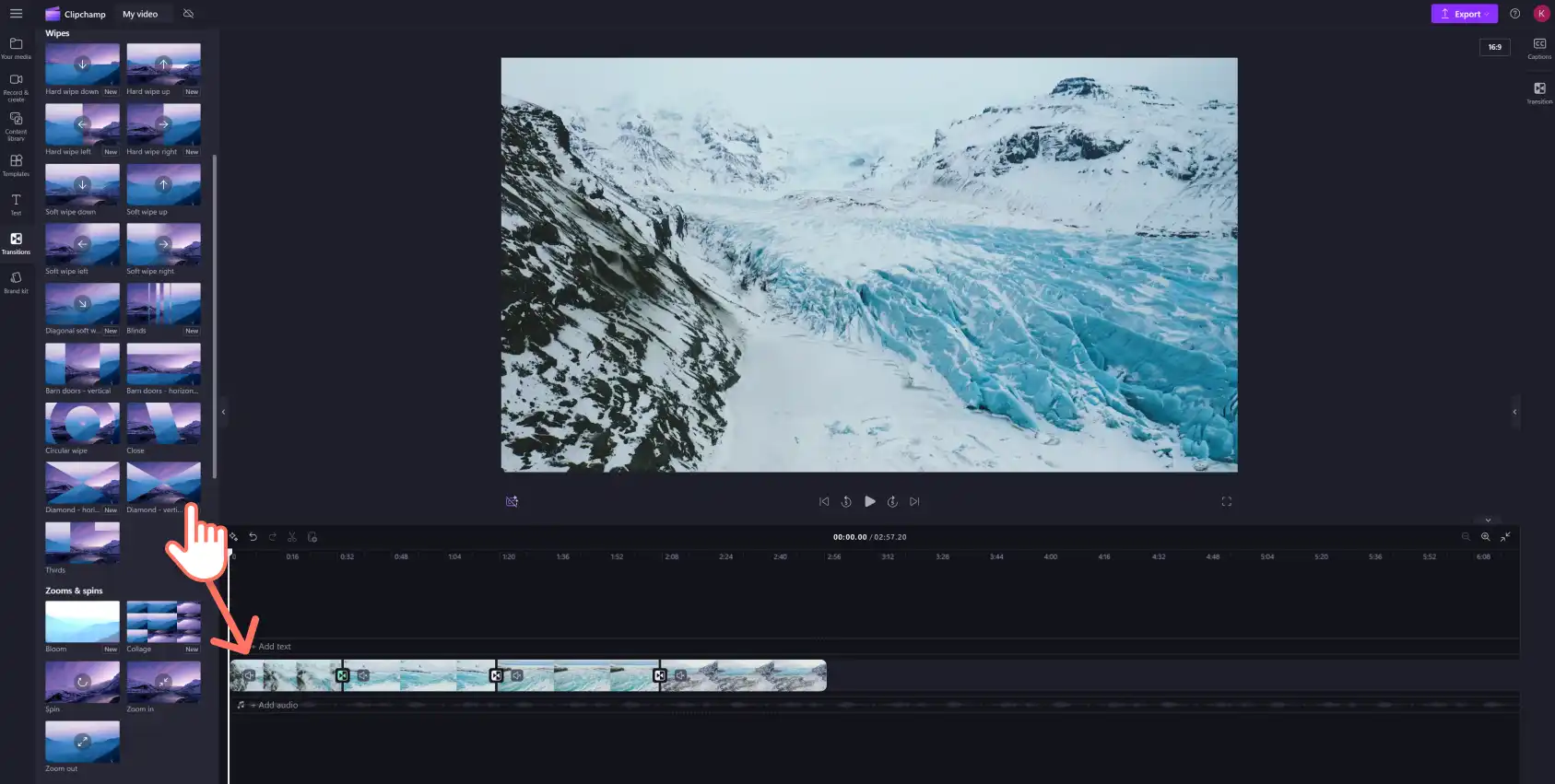
Step 4. Add a video transition sound effect
To add transition sound effects to a video, click on the content library tab on the toolbar and click on the visuals drop down arrow, then audio.
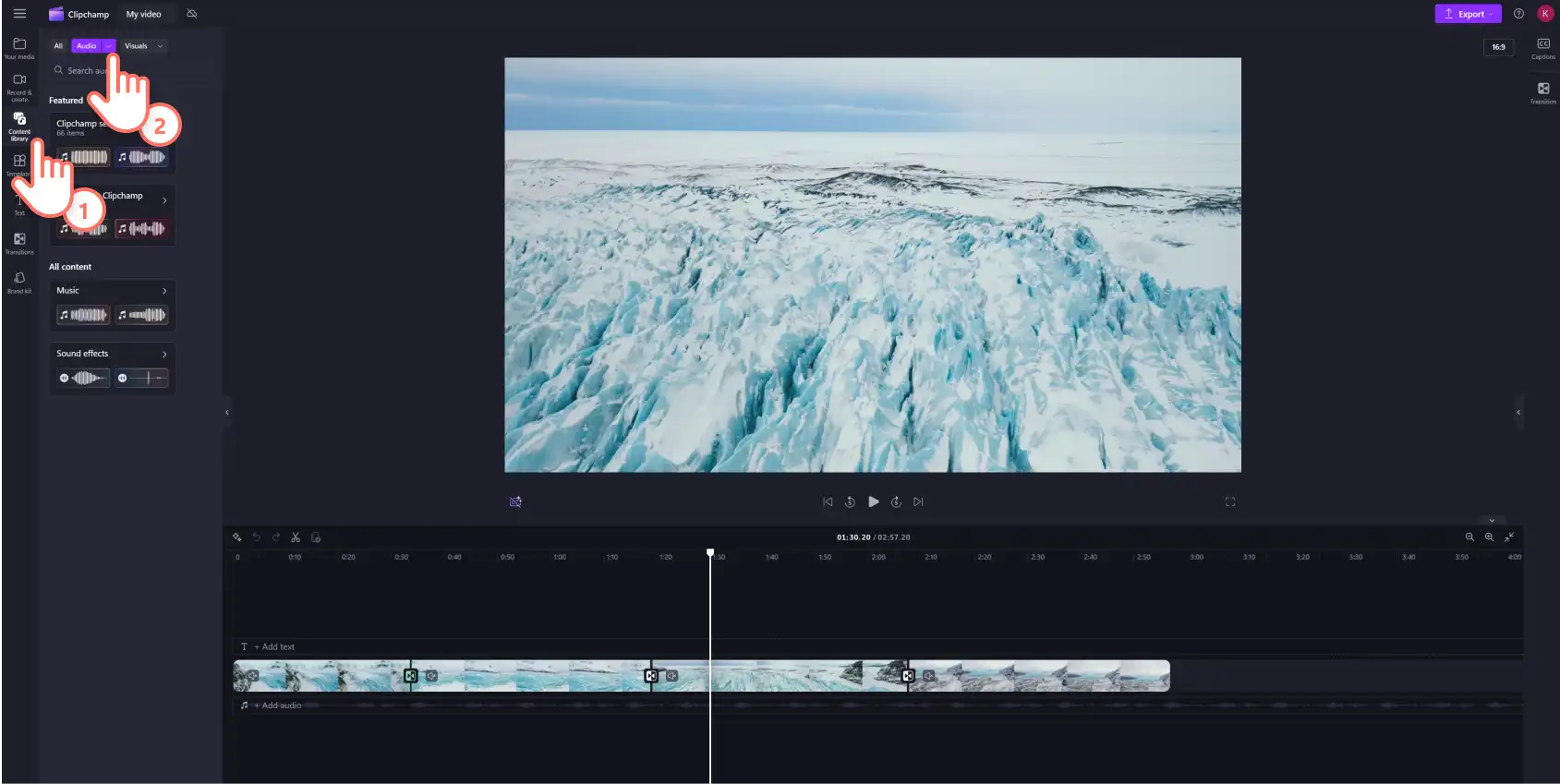
Further refine the search for a transition sound by using phrases or keywords in the search bar. Click on the play button to preview any sound in the library. Different sound effects can create different transition styles, so explore the Clipchamp audio library using a variety of keywords.
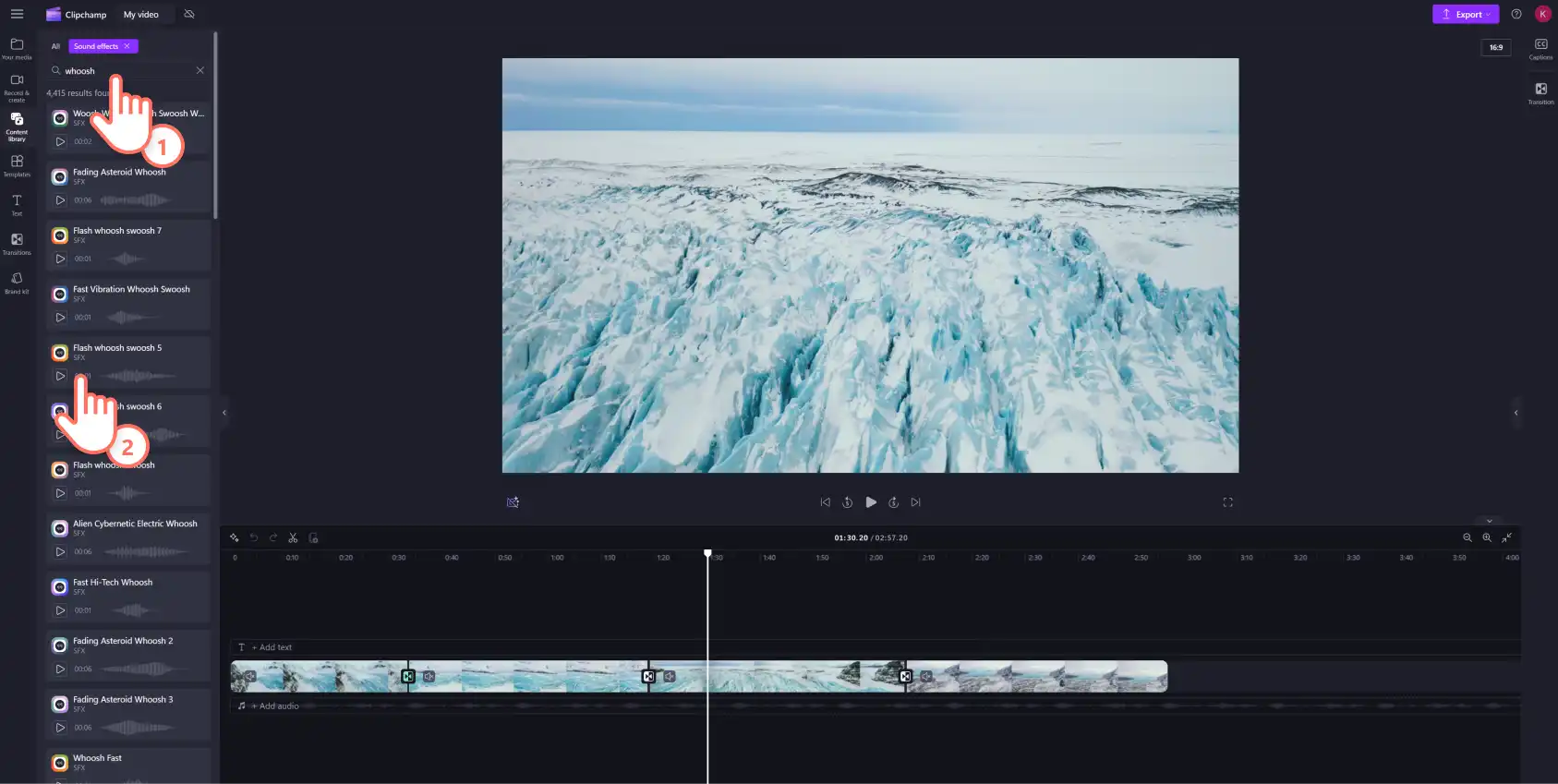
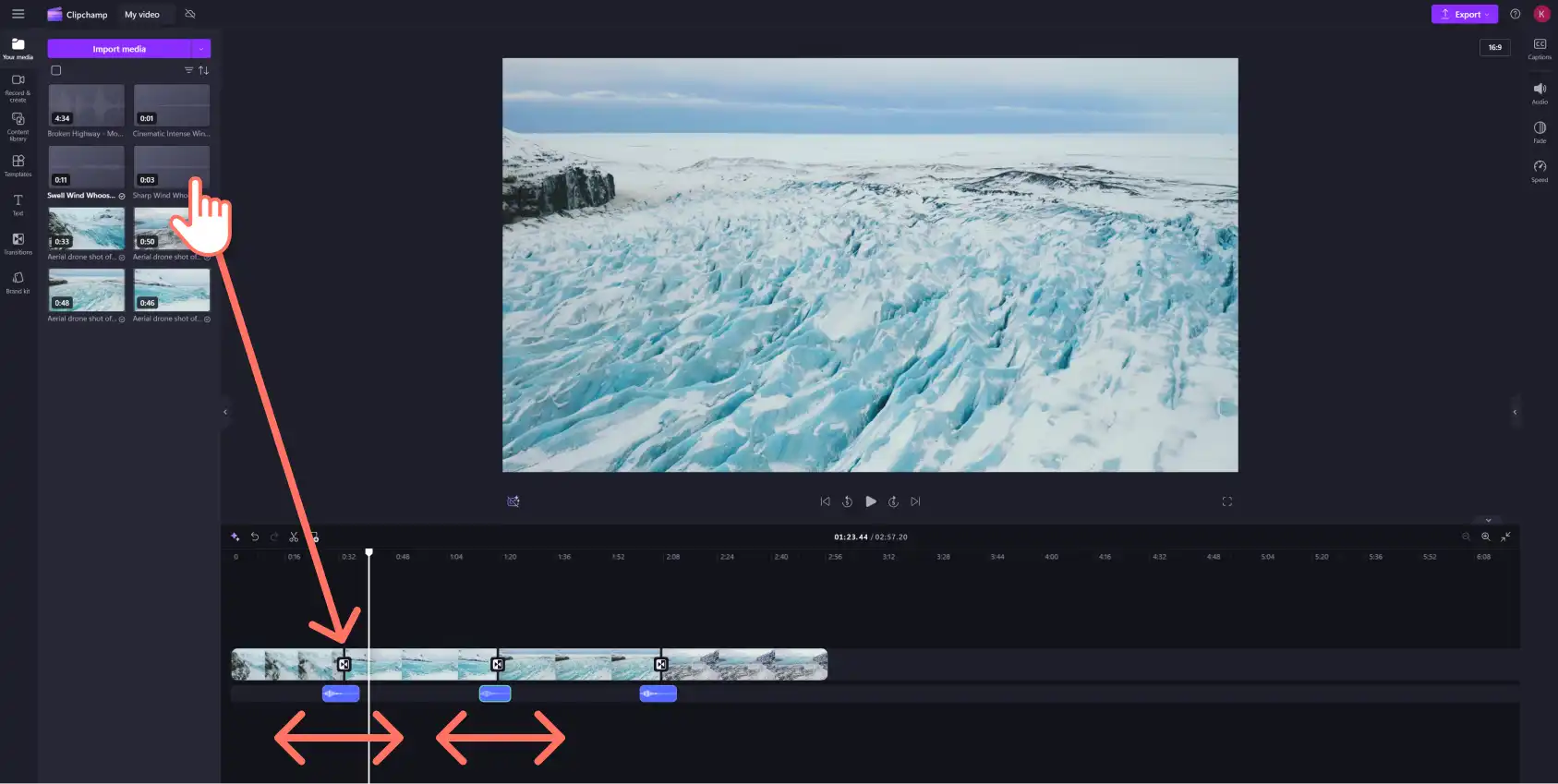
Drag and drop the sound effect onto the timeline directly below the video and transition. This will automatically sync the sound to the transition when the video plays.
Drag the trim handles of the audio track in and out to trim or extend the audio. Follow the same process for all the transitions in the video.
Step 5. Save the video in HD video quality
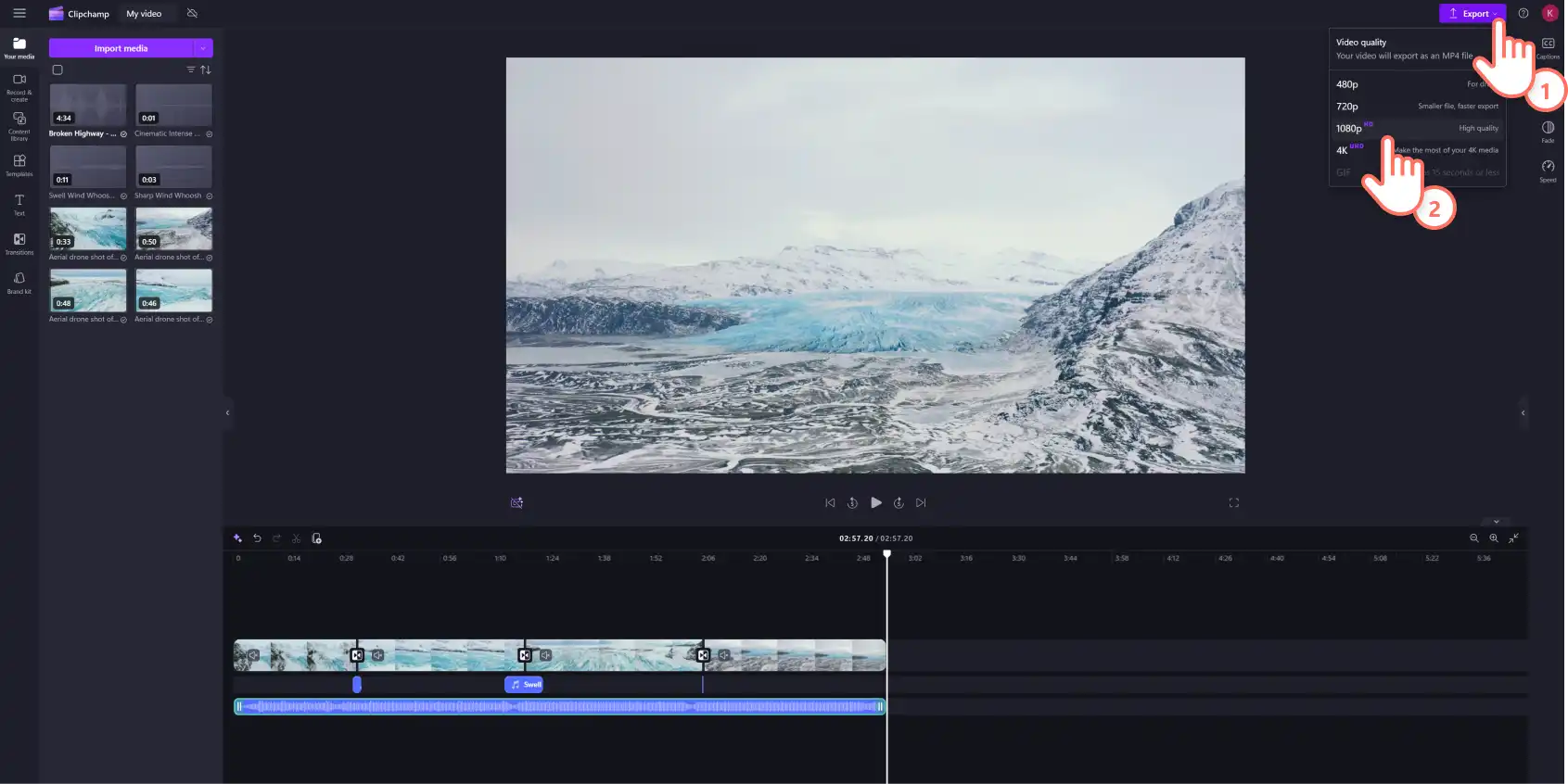
Add text, music, and stickers to a video to polish it. Once the transition sound effects are in place, click on the export button and select a video resolution.
Watch how to add transition sound effects to videos
See the whole workflow end to end, from picking a sound in the library to syncing it with a transition on the timeline.
Six ideas to use transition sound effects in videos
Pair the pixelate transition with a pixelated video game noise on the next gaming highlight video for the channel.
Match the page turn video transition with a page-turning sound effect to give a school video essay a sense of ASMR.
Add a star chime sound effect to highlight positive customer testimonials.
Pair the swoosh sound effect with the wipe left and right video transition to add an engaging and playful tone to online lesson videos for a course.
Tell a Halloween campfire story and evoke the sound of crackling coals by pairing the burn video transition with the ember burn sound effect.
Create a video resume with a behind-the-scenes feel by complementing the blinds transition with a rolling window noise.
Transitions and sound effects work hardest together, so pair them deliberately rather than adding a sound to every cut.
How to add transition sound effects to PowerPoint presentions
Slide transitions in PowerPoint carry their own sound effects, so the same idea travels from a video timeline to a deck. The sound plays as one slide gives way to the next, which suits a section break or a product reveal. Anyone already adding video to PowerPoint can use both in the same presentation.
Open the presentation in the PowerPoint desktop app and select the slide that needs a transition sound.
Select the Transitions tab on the ribbon, then choose a transition from the gallery.
Find the Timer icon, then click the arrow next to sound and pick a sound from the list.
Select Other Sound to add a custom audio file, locating the file, and selecting open.
Apply it across the deck by selecting Apply to All.
Tip: pair a push transition with a whoosh sound on a section divider slide, then leave the remaining slides silent. The sound then signals a change of topic instead of becoming background noise.
Discover more ways to enhance videos with transitions or explore additional audio editing tips for the rest of the soundtrack. Start editing today with Clipchamp video editor or download the Microsoft Clipchamp Windows app.
Frequently asked questions
- Are video transitions with sound effects free in Clipchamp?
Free accounts include a range of transitions and royalty-free sound effects suitable for many video projects.
- Can I add more than one scene transition to my video clips?
There are no limits on how many scene transitions a video can hold, but only one transition can sit between two clips at a time.
- Are sound effects royalty-free?
Every sound in the Clipchamp video editor stock audio library is royalty-free.
- Can I add transitions to videos on Windows?
Transitions work the same in the browser and in the Windows app, which is also part of Microsoft 365 and included in Personal and Family accounts.
Heads up! The screenshots in this article are from Clipchamp for personal accounts. The same principles apply to Clipchamp for work and school accounts.